
How to Calculate Chronological Age in Google Sheets
If you are a student, researcher, or teacher, you often need to calculate a person’s chronological age quickly. Instead of doing it manually, you can use Google Sheets to automate the process. With the right formulas, Google Sheets will instantly calculate age in years, months, and days from a given date of birth. In this guide, we’ll show you how to calculate chronological age in Google Sheets step by step, and at the end, we’ll also share a ready-to-use template that does everything for you automatically.
What is Chronological Age?
Chronological age is the exact amount of time a person has lived since their date of birth (DOB). It is usually expressed in years, months, and days. For example, if someone was born on 15th August 2000 and today is 26th August 2025, their chronological age is 25 years, 0 months, and 11 days.
Why Use Google Sheets for Age Calculation?
Google Sheets makes it easy to:
- Calculate age instantly without manual math.
- Keep records for multiple people (students, patients, or employees).
- Update results automatically whenever the current date changes.
- Share and collaborate with others easily.
Step 1: Enter the Date of Birth
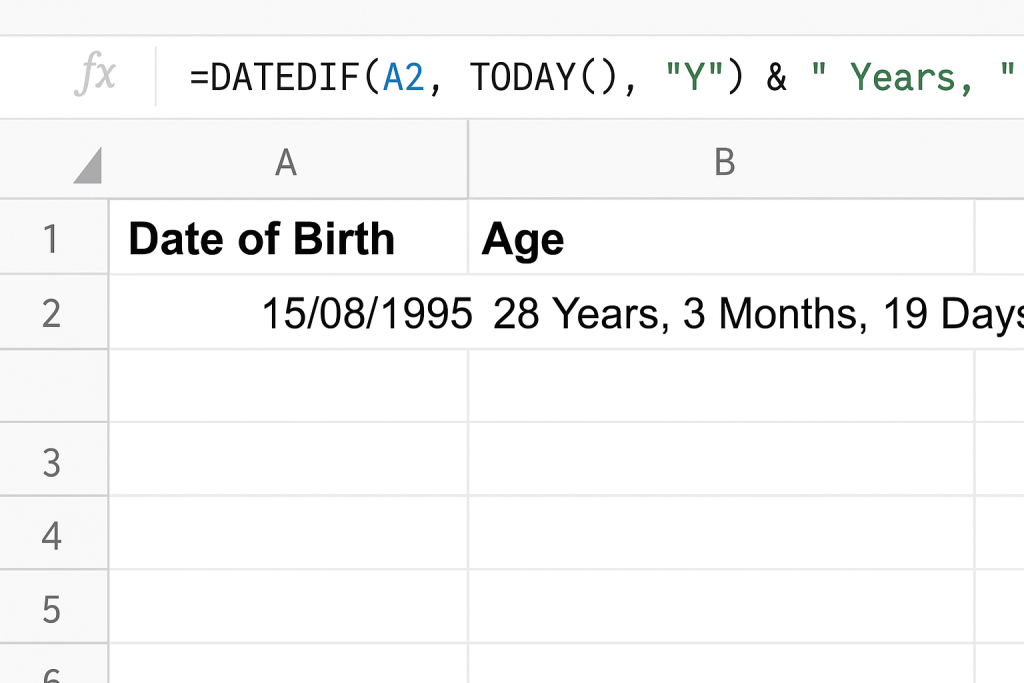
Open Google Sheets and enter the Date of Birth in one cell. For example:
- Cell A2 → 15/08/1995
Step 2: Use DATEDIF Formula
Google Sheets has a special function called DATEDIF that calculates the difference between two dates. You can use it to find age in years, months, and days.
Calculate Age in Years
=DATEDIF(A2, TODAY(), “Y”)
Calculate Age in Months (remaining after years)
=DATEDIF(A2, TODAY(), “YM”)
Calculate Age in Days (remaining after months)
=DATEDIF(A2, TODAY(), “MD”)
Combine All Together (Full Age in One Cell)
=DATEDIF(A2, TODAY(), “Y”) & ” Years, ” & DATEDIF(A2, TODAY(), “YM”) & ” Months, ” & DATEDIF(A2, TODAY(), “MD”) & ” Days”
This will return results like:
29 Years, 2 Months, 11 Days
Step 3: Apply the Formula to Multiple Rows
If you have a list of many dates of birth, just drag the formula down the column, and Google Sheets will calculate the age for all entries automatically.
Common Mistakes to Avoid
- Make sure the date format is correct (dd/mm/yyyy or mm/dd/yyyy depending on your region).
- Use TODAY() instead of typing today’s date manually, so the age updates automatically every day.
- Always double-check leap years and date formatting if you see unexpected results.
A Simpler Way – Use ToolsyCalc.com
Although Google Sheets works well, for many people the formulas can feel a little technical and confusing. If you want to calculate your chronological age in the fastest and easiest way, try our free tool at:
👉 ToolsyCalc.com Chronological Age Calculator
Here you simply enter your date of birth, and the calculator instantly shows your exact years, months, and days — no formulas, no setup, just results.